Ruby on Rails is a popular framework

Web applications are a constantly evolving world and so are their tools. After working with C++ and going through all the principles of versioning with Git and GitHub, I thought it would be a good time to take on full-stack web development with Ruby on Rails.

Ruby on Rails, commonly known as RoR or just Rails, is an open-source web application framework that uses the Ruby programming language. In other words, it is a set of tools and conventions that makes building web applications easier. It saves you from writing a lot of code from scratch; rather, Rails gives you a structure with pre-built components that you can use.

Rails is one of the best frameworks for developing e-commerce sites. It provides many tools and conventions one usually needs while working with databases, user accounts, orders, and other features typical of e-commerce applications. 

I am currently learning Rails from scratch with the goal of creating a fully functional e-commerce website. I am using a combination of resources, such as the official Ruby on Rails guides, helpful tutorials on YouTube, and modern CSS frameworks such as Tailwind CSS and Bulma.

Model View Controller (MVC) helped me logically structure the entire project while learning code in Rails and setting up an e-shop. Models represented store data, such as products with their names, descriptions, prices, product categories. Views set up the format through which the data is displayed to a user in their browser whether as product listing, product detail. Controllers then became intermediaries between models and views. This ensured smooth flow through the application and separation of individual logical layers.

It’s important to note that this web application is only active while the Rails server runs. The server, started with the rails server (or rails s) command in the terminal, acts as the engine that processes requests and serves the web pages. Closing the terminal or stopping the server makes the application inaccessible.

When installing Rails on Windows, I met a number of the typical pitfalls that come from this OS. That was why I decided to settle into the cleanest and least painful route due to WSL2-or Windows Subsystem for Linux 2.

WSL2 provided me with a fully-fledged Linux environment right on Windows. So, the installation and subsequent work with Rails went absolutely smoothly, as they would on a native Linux or even macOS system. I recommend this to anyone trying to save themselves from hassle and waste of time.

The MVC implementation inside Rails for products is shown in this resulting image, related to the routes.rb file. The resources – products route automatically generates paths for the various actions within the products themselves. These get displayed by a browser’s listing products as the output of that index action from the ProductsController controller, which relates to the Product model, that retrieves data from the database. The View then formats this into HTML and displays it for the user.

The Show this product and New product buttons point to other controller actions dealing with product detail and the form to create a new product, thus showing the connection between the individual MVC layers.

Implementing MVC in Rails for products is just the beginning, I would like to explore image optimisation, shopping cart management, payments and user accounts. My goal is to create a robust and user-friendly e-shop that will be fully functional.

Reflection

Building a fictional e-commerce store using Rails was intensive, but it introduced me to a lot of web development concepts. I got a foundation in CSS thanks to the Rails Asset Pipeline library and the efficient styling provided by frameworks like Bulma and Tailwind CSS.

Setting up a development environment with VS Code specifically for Rails greatly simplified my process, making the coding process more enjoyable and productive. I learnt the importance of thorough documentation, relying on the official Ruby on Rails guide and supplementing it with practical examples from YouTube tutorials.

I encountered problems when integrating the Trix editor with Active Storage and working with a SQLite database, especially when importing CSV data. These obstacles forced me to delve deeper into the documentation and look for solutions in Ruby on Rails guides. I learnt how to troubleshoot effectively, which are skills that will be invaluable in future projects.

Through this project, I gained a solid understanding of MVC architecture, database interactions, and the importance of data backup. This experience has equipped me with the skills and confidence to take on more complex web development projects in the future.
Drag widget here
Which layout would you like to use?
Select your structure

GitHub is like a personal exhibition where you can display all your projects, from the smallest to the most ambitious. It’s a versioning platform, which means it allows you to track changes to your code over time and revert to previous versions. Versioning is essential for collaborating on projects, backing up your code, and keeping track of your code history. The platform is built on Git, the most widely used versioning system. If you want to learn more about Git and how it works, I recommend reading my previous article, “Learning Git Through Small Projects”.

When I first published my first project on GitHub, I was nervous. I found the GitHub community to be incredibly welcoming and friendly. What’s more, GitHub is like my online portfolio. Future employers often look at GitHub profiles to see what someone has worked on and what kind of programmer they are. So why not show them what I can do?

The goal of this article is to show you how to create a GitHub profile and how to get started using it. 

Creating a GitHub Profile

The first step to sharing your code and collaborating with others is creating a GitHub profile. Here’s a step-by-step guide:

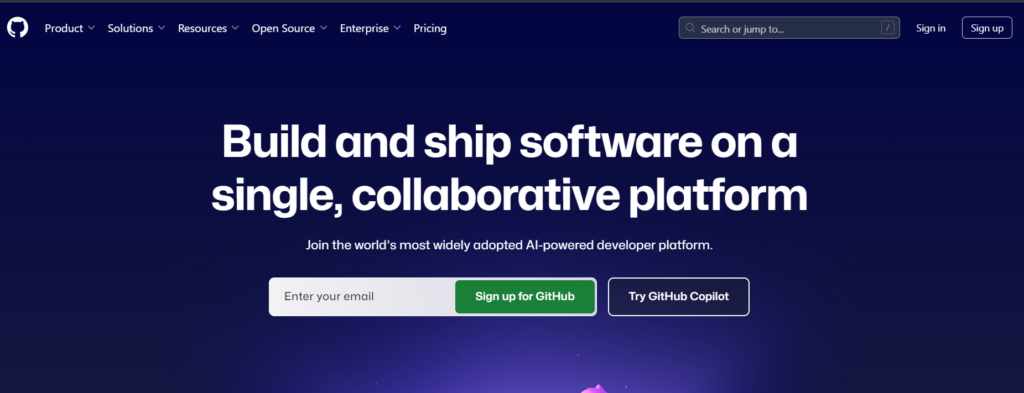
Go to GitHub: Open your web browser and navigate to https://github.com/.

Sign up: Click the “Sign up” button.

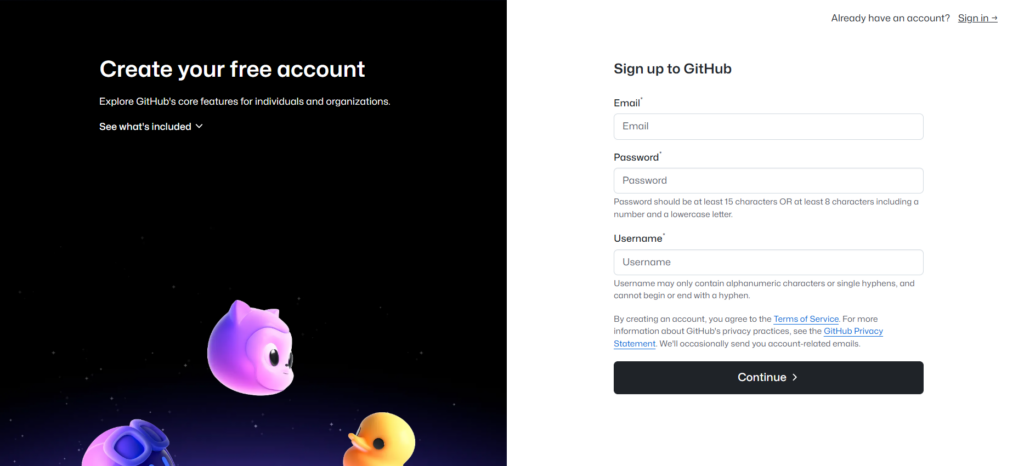
Enter your information: 

  • Email address: Enter a valid email address that you have access to.
  • Password: Create a strong password.
  • Username: Choose a unique username. This will be part of your GitHub profile URL (e.g., github.com/<username>).

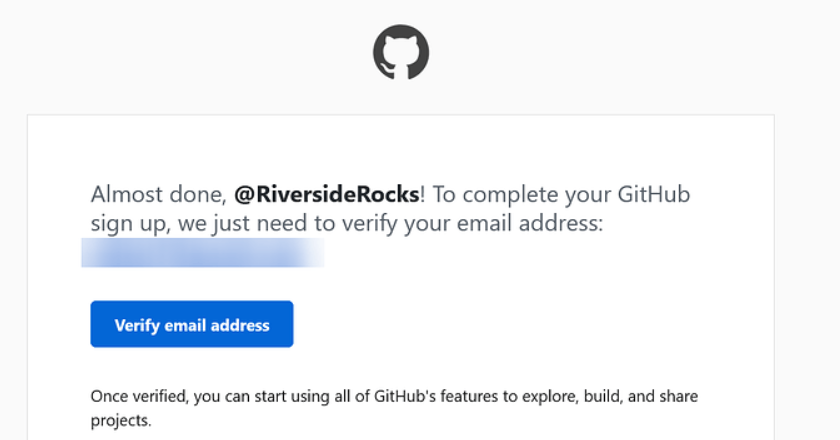
Verify your account: GitHub will send a verification email to the address you provided. Open the email and click the verification link.

Complete the setup: After verifying your email, you may be asked a few questions to help GitHub customise your experience. You can usually skip these if you want to.

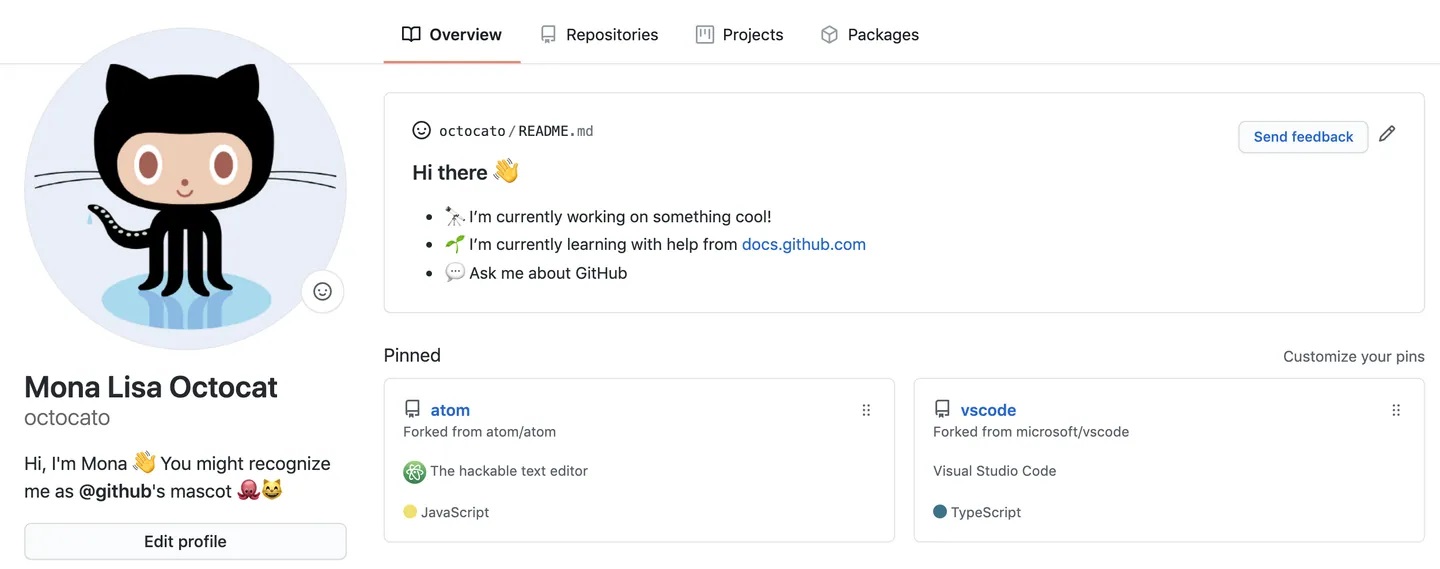
Customise your profile: 

  • Profile picture: Add a profile picture to make your profile more personal.
  • Bio: Write a short description about yourself and your interests.
  • Social accounts: Add links to your other online profiles (e.g., LinkedIn, Twitter).

Creating Your First Repository

Now you have a GitHub profile, it’s time to create your first repository. A repository is like a folder where your project’s files are stored.

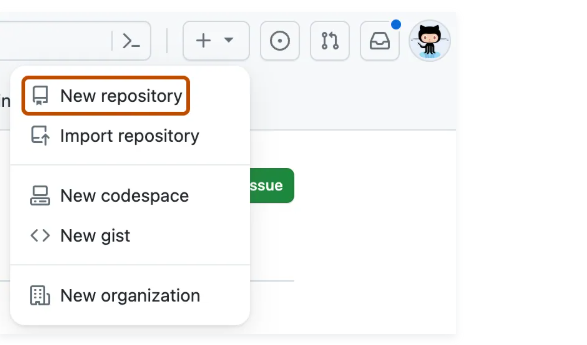
Click the “+” button in the top right corner and select “New repository”.


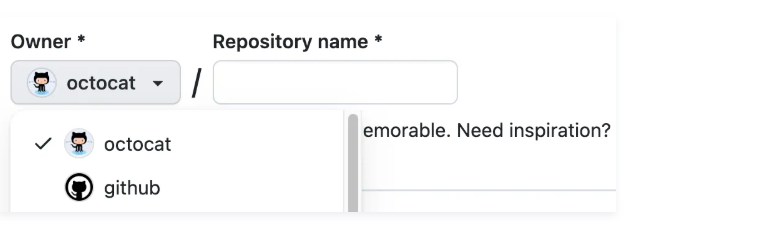
Give your repository a name (e.g., “my-first-project”).


Choose whether you want your repository to be public (visible to everyone) or private (visible only to you and the people you choose). Public repositories are free, private repositories have limitations for free accounts (number of collaborators).

Optionally, add a description for your repository and initialize this repository with Add a README file (this creates a README.md file that serves as an introductory documentation for the project, it is recommended that you create one), .gitignore (allows you to define files and folders that Git will not track), and choose a license (allows you to choose a license for your project).

Click “Create repository”.

What to do after creating a repository?

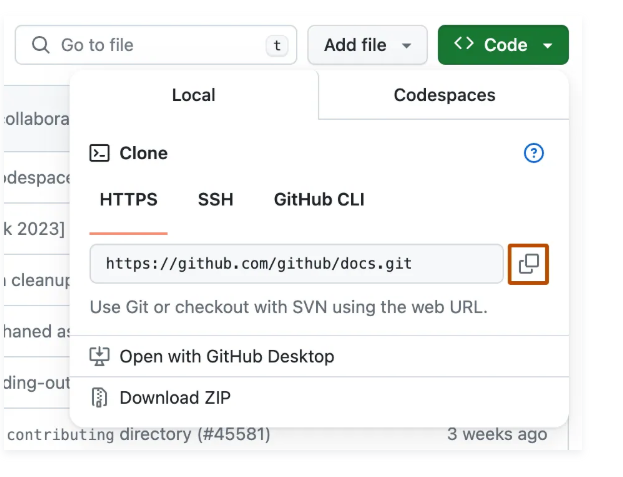
Using the command git clone <repository URL> clones the repository from GitHub.com to your local computer, making it easier to resolve conflicts when merging, adding, or removing files.

In GitHub, you can create files and folders for your project. Using Git commands, you can track changes, commit them, and upload them to GitHub.

When developing my C++ projects, I used a strategy of frequent commits. After implementing each piece of functionality, such as generating random numbers, I created a commit with a brief but concise description. This allowed me to have a clear history of changes and easily revert to a previous version if necessary. For example, when I implemented input handling so that the program wouldn’t crash when a non-numeric character was entered, and the new implementation caused unexpected behavior, I used the git revert <hash_commit> command to revert the changes from that commit. This created a new commit that undone the changes, preserving the complete history of the project.

Reflection

While using GitHub, I learned a couple of things. First, regular commits with concise descriptions are keys. I struggled with this at first and sometimes made few or unclear commits. This then backfired when I needed to revert to an older version or understand what I changed in a given commit. I learned from this experience and now try to write commit messages as best I can. 

Next is collaboration on GitHub, even if it’s just browsing other people’s repositories and examining their code, has given me valuable insight into the work of more experienced developers. I look at how they organize their code, branch off, and solve issues that inspire me. I want to go ahead and get more into open-source projects in turns to becomes an active contributor.

Finally, GitHub has opened my eyes to the importance of code sharing and open communication within the developer community. I realized sharing my projects more assists me in learning while helping others out and building an online portfolio. It gave me a huge impetus to keep learning and developing my software engineering skills.

Scroll to Top